How to Read a LinkedIn Profile in Sales Navigator
Jan 03, 2023
New to Sales Navigator? If you’ve spent any amount of time on LinkedIn, using Sales Navigator will probably feel pretty intuitive. However, given the upgraded toolset this premium subscription offers, you’ll find that there are plenty of features and workflows for which the free version of LinkedIn simply doesn’t compare.
The LinkedIn profile is one area where you’ll notice a lot of familiar sections and information and also many new ones. To make sure you’re taking advantage of all Sales Navigator has to offer, don’t miss these top features as you review profiles.
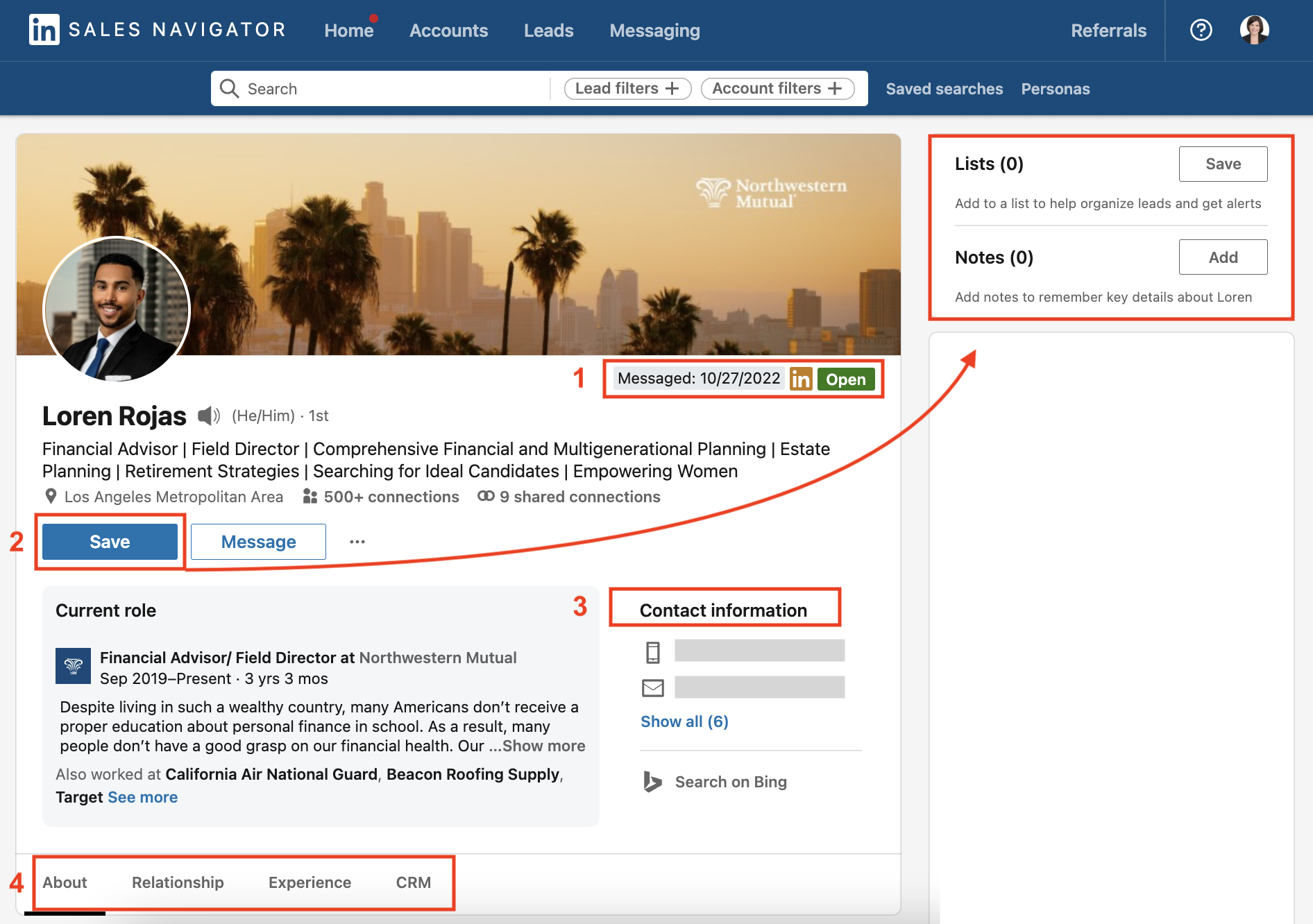
1. Date of Last Engagement & Profile Status
The first thing you’ll want to pay attention to in a LinkedIn profile on Sales Navigator, or what LinkedIn calls a “lead page” is the top right summary area, just below the background image. Here, you’ll notice a record of your interaction with this person, or lead. If you’ve viewed the lead page or interacted with the lead before, the date and type of engagement will be noted here. Otherwise, you’ll see a note indicating that this is your first view of the lead page.
Like in the free version of LinkedIn, sometimes you’ll also see a gold LinkedIn icon if the lead has a LinkedIn premium subscription. For premium LinkedIn members only, you might notice an additional green icon denoting whether or not the profile is “Open.” People with open premium profiles allow anyone on LinkedIn to contact them directly, regardless of their connection status.
2. Save Button
Just below the headline section of the lead page, you should see a large blue “Save” button. By clicking this button, you’ll be able to save the person to one or more lists. If you’ve already saved the lead to a list, the number in the parentheses next to “Lists” will reflect the number of lists to which the person is saved. (FYI: The "Recommended Leads" list is autogenerated by LinkedIn.)
You can also use the “Notes” section to update any information you’d like to capture about the lead. Any time you view the lead page, you can quickly reference your notes from this right column. (This feature is especially handy when I've been referred to a lead; I'll add that note here.)
"Timeline" is a high-level look at your interactions with this person.
For more on using Sales Navigator Lead Lists, check out this LinkedInsider article.
3. Contact Information
Unlike in the free version of LinkedIn, contact information is front and center in Sales Navigator. No more unnecessary clicks! Of course, there are plenty of ways to engage a lead on LinkedIn, but a phone number and email address will likely come in handy in your sales process, too. You can also manually update this information within this section of the lead's profile.
Even though you know I’m all about LinkedIn, a good old-fashioned phone call absolutely has its place. I’m a strong believer in the idea that LinkedIn cannot be the only way you grow your network. So, don’t miss the opportunity to collect that valuable contact information easily from the lead page and use it with discernment.
4. Personal Details
Below the current role summary box box, you’ll find a toggle menu where you can skip to more information on the lead listed in the Lead IQ, About, Relationship, and Experience sections of the lead page. The About and Experience sections are self-explanatory as they’re the same as what you’ll find in the corresponding sections of a normal LinkedIn profile.
The Lead IQ section is in beta mode (as of the publishing of this article) and so far, I love it! It uses AI to scan our profiles and activity on LinkedIn to give me juicier/stickier entry points of conversation. Here is what it came up with for me and Shannon:
INSERT SCREENSHOT
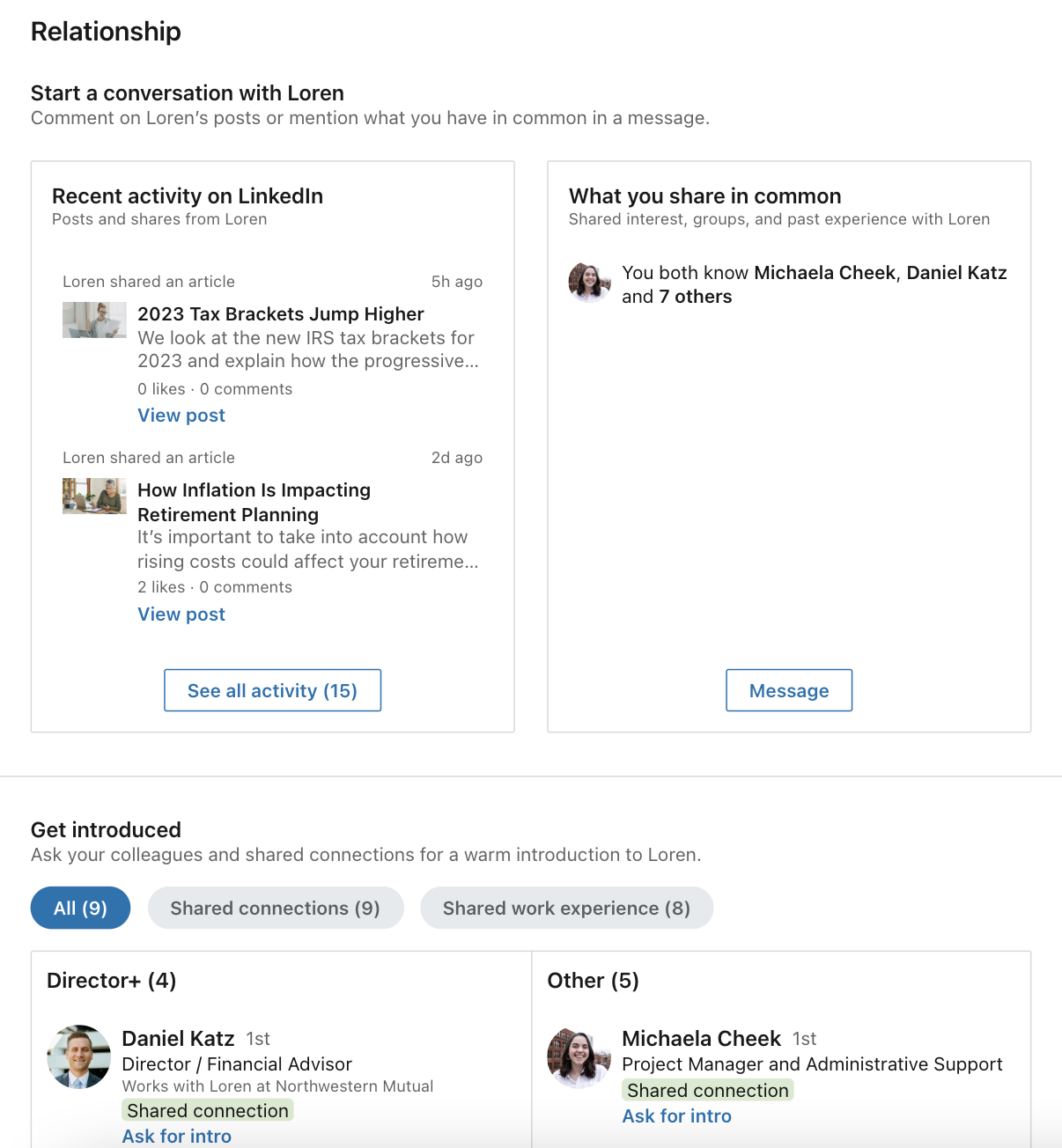
The Relationship section is unique to Sales Navigator lead pages. This part of the lead page is a goldmine of information about the person. Think of it like your quick notes on how and where to engage the lead. You have all the information you need to start a conversation, either by chiming in on the person’s recent posts or by referencing a connection you have in common via a personal message. The Relationship section makes opening the door as easy as possible, so don’t sleep on this helpful information.
When you master your use of lead pages, the Sales Navigator version of LinkedIn profiles, you’ll be well on your way to sourcing and developing great sales opportunities. For even more insight on how to strategically yield opportunities from your existing network, check out my digital training resource, 3 Proven Principles to Accessing Your Target Market on LinkedIn...(and land more clients!). This info-packed mini-course will help you decide who should be in your network, intentionally build it, then assess your existing network.